
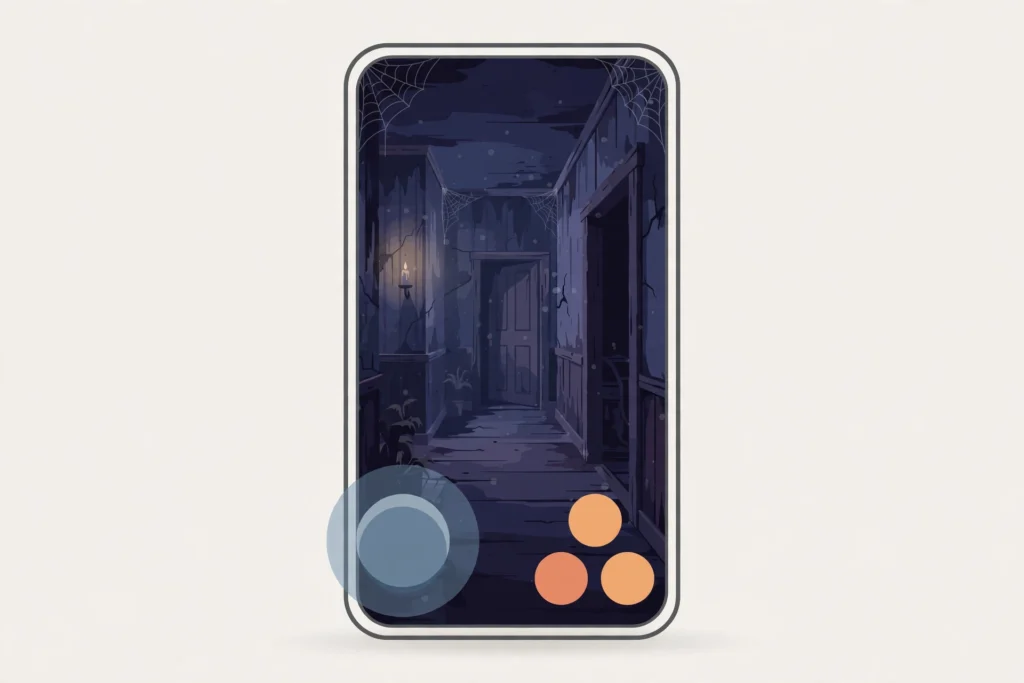
Granny game controls are simple on paper — a joystick, a few buttons, and five days to escape — but they decide almost every run. Granny hears everything, so the difference between a quiet walk and a panicked sprint is one thumb movement, and the difference between grabbing a key and dropping it at her feet is one button. This guide covers the controls only: the mobile touch layout, the PC keyboard and mouse setup, the settings worth changing, and the quiet-movement habits that keep you alive.
It will not teach you how to escape — our guide to beating Granny covers the beginner steps — and it will not retell the story or redraw the house. For the layout, keep the house map open beside this guide. What follows is the control layer: what each button does, when to use it, and the mistakes that get players caught.
Granny Game Controls at a Glance
Granny was built for phones first, so the touch layout is the real control scheme and the PC version maps the same actions onto keys. Nothing here needs memorising in advance — but knowing the layout before Day 1 starts means your first scare does not become a lesson in which button hides you.
- Move: virtual joystick (mobile) or W, A, S, D (PC).
- Look around: drag anywhere on the right side of the screen (mobile) or move the mouse (PC).
- Pick up / use / open: the hand icon (mobile) or E (PC).
- Drop what you are carrying: the drop button (mobile) or Space (PC).
- Crouch and stand up: the player icon (mobile) or C (PC).
- Shoot (shotgun or crossbow only): the shoot button (mobile) or left mouse click (PC).
- Special actions (well winch, car): hold the on-screen prompt (mobile) or F (PC, winch).
If you remember only one thing, remember this: you can carry exactly one item at a time. Every control decision in the game flows from that — picking something up, dropping it, and knowing where you left it.
Mobile Touch Controls Explained
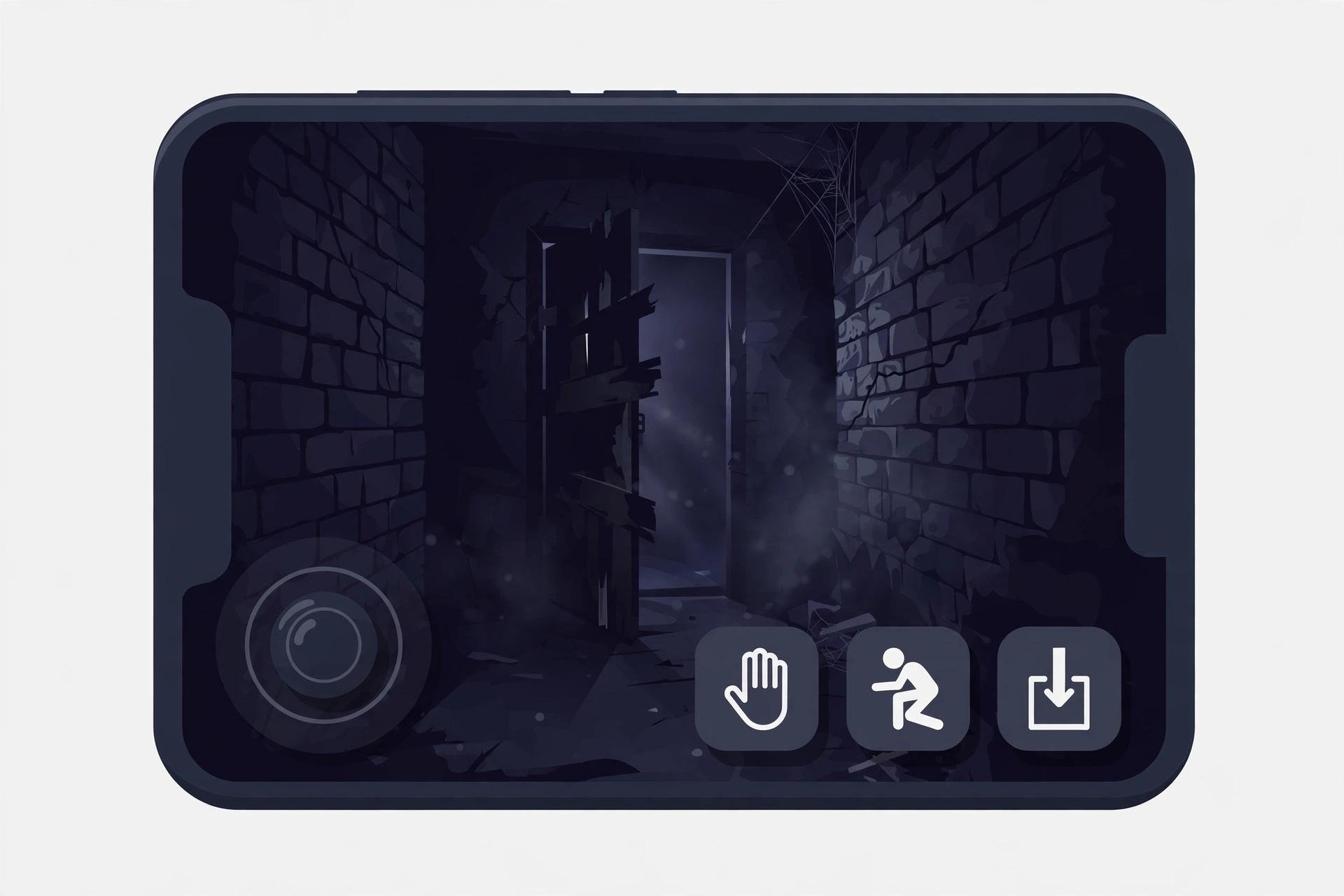
The mobile layout puts movement on the left and actions on the right, so your thumbs never cross. It looks sparse because it is: Granny needs few buttons, and the skill is in using them quietly.
The joystick (bottom left). Push it to walk. Push it gently and you walk slowly; push it to the edge and you move faster. The joystick also handles crouching — push it down while crouched to stay low through tight spaces. New players sprint everywhere by holding the joystick at full tilt, and that is the single loudest habit in the game. Granny hears footsteps, and a sprint across a creaky floor is an invitation.
Look by dragging (right side). Drag anywhere on the right half of the screen to turn your view. Short, controlled drags beat wild swipes: a fast spin disorients you, and in a dark corridor disorientation costs seconds you do not have. If the camera feels too fast or too slow, change the look sensitivity in the settings before your next run, not during it.
The hand icon (right side). This is your main action button. Tap it to pick up an item, open or close a door, use a key on a lock, or climb through the backyard window. It only works when you are close enough and looking at the right thing — if nothing happens, step closer and aim your view at the object. Tapping it repeatedly at nothing wastes nothing but time, and time is the one resource the house never gives back.
The drop button. Tap it to put down whatever you are carrying, freeing your hand for something else. Remember that a dropped item almost always makes a noise when it lands, and noise attracts Granny. Never drop an item to grab another one in the open — remember where the new item is, finish what you are doing, and come back for it on a planned route. Our characters guide explains who hears what, and why a single clatter can end a run.
The player icon (crouch). Tap it to crouch, tap again to stand. Crouching makes you quieter and lets you hide under beds and inside wardrobes. It also slows you down, so crouch with a purpose — crossing a noisy room, or slipping past a doorway — not as a default way of walking. The icon changes to show whether you are crouched, so glance at it before you move.
The shoot button. This appears only when you are holding a loaded shotgun or a loaded crossbow. Tap it to fire. Ammunition is scarce, so a shot should solve a problem, not express frustration — Granny returns, and a wasted shot is a wasted escape tool. The mod menu guide explains how the modded version changes weapons, if you play that build.
PC Keyboard and Mouse Controls
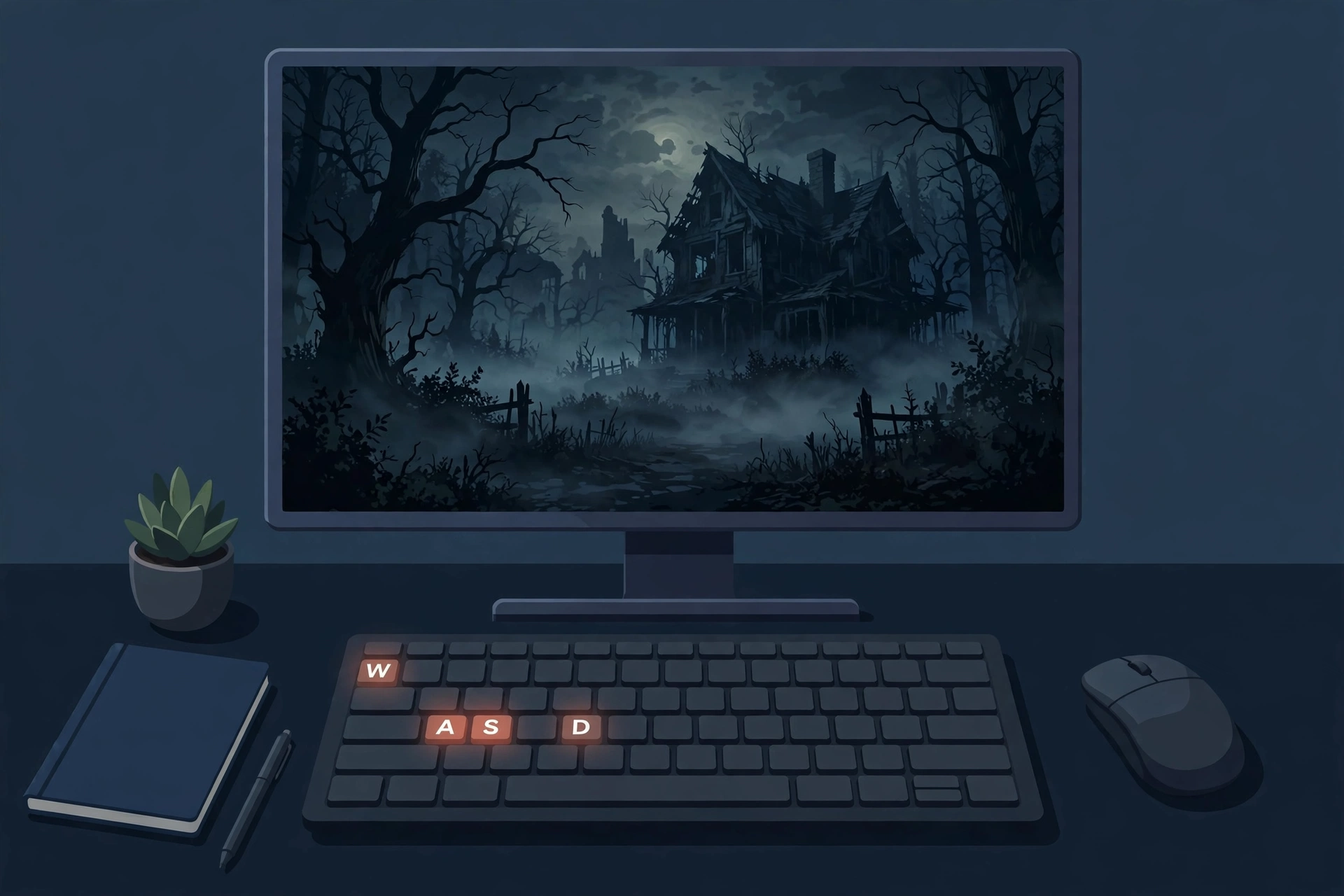
The PC version of Granny uses the same actions with keyboard and mouse instead of touch. If you play on a computer, these are the keys that matter — everything else is a variation on them.
| Action | PC key | Notes |
|---|---|---|
| Move | W, A, S, D | W forward, S back, A left, D right |
| Look around | Mouse | Move the mouse to turn your view |
| Pick up / use / open | E | Works on items, doors and locks when close |
| Crouch and stand up | C | Quieter movement; needed for hiding spots |
| Drop item | Space | The item lands with a noise — plan the drop |
| Shoot (shotgun / crossbow) | Left mouse click | Only appears with a loaded weapon |
| Spin the well winch | F (hold) | Hold to wind the winch and raise the item |
| Walk quietly | Hold Shift | Slower, quieter steps — the stealth modifier |
Two keys deserve extra attention. C (crouch) is your stealth switch: crouching before you cross a creaky floor keeps the noise down, and standing up in the wrong room is how quiet runs turn loud. Shift (walk quietly) is the key new PC players forget — holding it while you move trades speed for silence, and in a house where the hunter listens, silence is usually the better trade. The PC version has no separate sprint key; speed comes from how far you push the movement keys, just like the joystick.
If the mouse feels too twitchy, lower the sensitivity in the settings. A calm, predictable camera beats a fast one: you need to check corners and doorways, not spin through them. Players on a television setup should read our Android TV guide for notes on controllers and remote play, where the same actions map onto a gamepad.
Touch Controls vs PC Controls
Neither layout is better — they trade precision for comfort. The table compares them honestly so you can pick the one that fits how you play, and know what to practise on the other.
| Feature | Mobile touch | PC keyboard + mouse |
|---|---|---|
| Movement | Virtual joystick, analogue speed | WASD keys, fixed speed per key |
| Looking around | Drag on the right side | Mouse, faster and more precise |
| Pick up / use | Hand icon tap | E key |
| Crouch | Player icon tap | C key |
| Drop item | Drop button tap | Space bar |
| Quiet movement | Gentle joystick push | Hold Shift while moving |
| Shooting | On-screen shoot button | Left mouse click |
| Learning curve | Easiest to start | Faster once the keys are muscle memory |
| Biggest mistake | Sprinting everywhere by accident | Spinning the camera too fast |
Mobile wins on accessibility: anyone can pick the game up and move within seconds, and the joystick’s analogue push gives you fine control over walking speed. PC wins on looking around: the mouse turns your view faster and more precisely, which matters when you hear a footstep and need to check a doorway now. The common thread is the same in both — quiet movement and deliberate buttons beat fast, panicky ones. If you switch platforms, give yourself a practice run in the easiest setting before a serious attempt; the buttons are the same ideas, but your thumbs and fingers will need one run to relearn them.
Settings Worth Changing Before You Play
Granny’s settings menu is small, but three options change how the controls feel. Set them once, before a run, and leave them alone.
- Look sensitivity. If the camera whips past doorways on mobile, turn sensitivity down one notch. If you cannot check behind you quickly enough, turn it up one notch. Change it by one step at a time and test it in a safe room — a big jump in either direction feels wrong for a whole run.
- Graphics quality. On an older phone, dropping the quality a step keeps the frame rate smooth, and a smooth game responds to your inputs on time. A stuttering game drops inputs, and a dropped crouch at the wrong moment is a caught player. If the game misbehaves after a settings change, our not-working fixes cover the common causes.
- Sound. Play with sound on. Granny’s footsteps, the creak of a floorboard and the clatter of a dropped item are your warning system, and the controls only help if you can hear when to use them. Headphones make the direction of a sound clearer, which tells you which way to look before she arrives.
One more setting matters, though it is not in the controls menu: difficulty. It changes how aggressive Granny is and how much room for error you have, so the same button presses play differently across settings. Our age rating and parental guide explains the difficulty options for younger players and parents. And if you are on an older build, check you are running the latest version — control behaviour is stable across recent updates, but old builds can behave oddly.
Quiet Movement: The Control Skill That Matters Most
Granny is a listening game, and the controls exist to keep you quiet. The whole skill fits in a short practice routine. Run it once on the easiest setting before a serious attempt.
- Walk the first room with the joystick barely pushed (mobile) or with Shift held (PC). Listen to your own footsteps. Quiet steps are the baseline — everything else is a deviation from it.
- Crouch before every doorway. Tap the player icon or C, cross the threshold, then stand. Doorways are where players get heard, because they rush through them.
- Practise the pick-up without the drop. Walk to an item, tap the hand icon or E, and carry it to the next room without dropping it. Dropping is the noisiest button in the game.
- Learn the look-drag (mobile) or mouse turn (PC) in a safe room. Turn 180 degrees, check behind you, turn back — smoothly, without overshooting. Do it ten times until it feels boring.
- Hide once on purpose. Crouch under a bed or inside a wardrobe, wait, then stand and move on. Knowing the hide button by feel means you will find it when you are scared.
- Drop one item on purpose, in a safe room, and listen. Hear how far the noise carries. That sound is the reason you never drop things in the open.
- Repeat the whole routine on your next run’s first day. Controls learned in practice stay learned; controls learned in a panic do not.
This routine is not an escape walkthrough — the escape steps are in the beat-Granny guide, and the timed version of all of this is in our speedrun guide, where the same quiet habits decide the clock. Here the point is simpler: make the buttons boring before the house makes them frightening.
Common Control Mistakes (and Their Fixes)
Every new player makes the same handful of control errors, and each has a one-line fix.
- Sprinting everywhere. Fix: push the joystick gently or hold Shift. Speed is for planned dashes, not default movement.
- Dropping items in the open. Fix: remember the item’s spot and return for it. A dropped item is a dinner bell.
- Spinning the camera. Fix: lower the sensitivity one notch and use short drags or small mouse movements.
- Standing up in a hiding spot. Fix: check the crouch icon before you move. The icon tells you your state — trust it, not your memory.
- Tapping the hand icon at nothing. Fix: step closer and aim your view at the object first. Range matters.
- Forgetting the shoot button only appears with a loaded weapon. Fix: if there is no shoot button, you are not holding a loaded weapon — do not stand in the open waiting for one.
- Playing with sound off. Fix: turn it on. The controls are half the game; hearing is the other half.
If the controls feel unresponsive rather than unfamiliar — buttons not registering, the joystick sticking — that is usually a device or install issue, not a skill issue. Make sure the game installed cleanly (how to install) and that you are on the current build; the fixes guide linked above covers the rest.
Controls on Android TV and Other Screens
Granny on a television uses the same actions through a remote or a connected gamepad, and the mapping is the part players trip over: a remote’s directional pad replaces the joystick, and the select button replaces the hand icon. The full television setup — sideloading, remote mapping and gamepad pairing — is in our Android TV guide. Two tips carry over from this guide: lower the look sensitivity, because a remote turns the camera in coarse steps, and keep sound on, because on a television the speakers make direction harder to judge than headphones do.
Frequently Asked Questions
What are the basic Granny game controls on mobile?
Move with the virtual joystick on the left, look by dragging on the right side of the screen, tap the hand icon to pick up items or open doors, tap the drop button to put an item down, and tap the player icon to crouch. The shoot button appears only when you hold a loaded shotgun or crossbow.
What are the Granny controls on PC?
W, A, S, D to move, the mouse to look, E to pick up or use, C to crouch, Space to drop an item, left mouse click to shoot with a loaded weapon, F (held) to spin the well winch, and Shift held while moving to walk quietly.
How do I move quietly in Granny?
Push the joystick gently instead of to the edge on mobile, or hold Shift while moving on PC, and crouch before crossing doorways and creaky floors. Never sprint by default and never drop items in the open — both make noise that brings Granny to you.
How do I hide in Granny?
Crouch with the player icon (mobile) or C (PC) and move under a bed or inside a wardrobe. The crouch icon shows your current state, so check it before moving — standing up inside a hiding spot gives you away.
Why can’t I pick up an item in Granny?
You are probably too far away, not looking directly at it, or already carrying something — you can hold only one item at a time. Step closer, aim your view at the item, drop what you are carrying somewhere safe first, then tap the hand icon or E.
Can I change the Granny controls?
There is no full key-remapping menu, but you can change look sensitivity, graphics quality and sound in the settings, and difficulty changes how forgiving the game is. The button layout itself is fixed on mobile, and the PC keys are fixed as listed in the table above.
Final Thoughts
Granny game controls reward the player who treats them as a quiet instrument, not a panic panel. Walk gently, crouch before doorways, pick up deliberately, drop rarely, and keep the sound on.
The genuine game is on Google Play, and the developer’s own site is DVloper Games — both worth checking before you download anything, since copycat listings exist. For the competitive side of the same controls, the Granny speedrun board shows what quiet, practised movement looks like at the top level.
Learn the layout once, practise it until it is boring, and the house gets a little less frightening — one quiet step at a time.